An Automatic Record Creation rule (ARC Rule) is a code-free way to create or update records inside Dynamics 365 based on monitoring an Activity Table.
The most common and useful example of using an ARC rule (sometimes referred to as the Record Creation and Update Rule) is when a company has an IT team that uses a Help Desk mailbox. Employees send a message to the Help Desk email address, with questions, concerns, or requests. Instead of having an IT specialist constantly monitor the mailbox, we can implement an ARC rule so they can monitor requests and emails efficiently within Dynamics 365. This ARC rule automatically creates a case for each request and transfers all of the information from the sender to an assigned IT specialist who can help with the problem. This makes it easy to track all request progress directly within Dynamics 365.
There are 3 important parts needed to implement an ARC rule:
1. Queue

2. Mailbox
3. ARC Rule

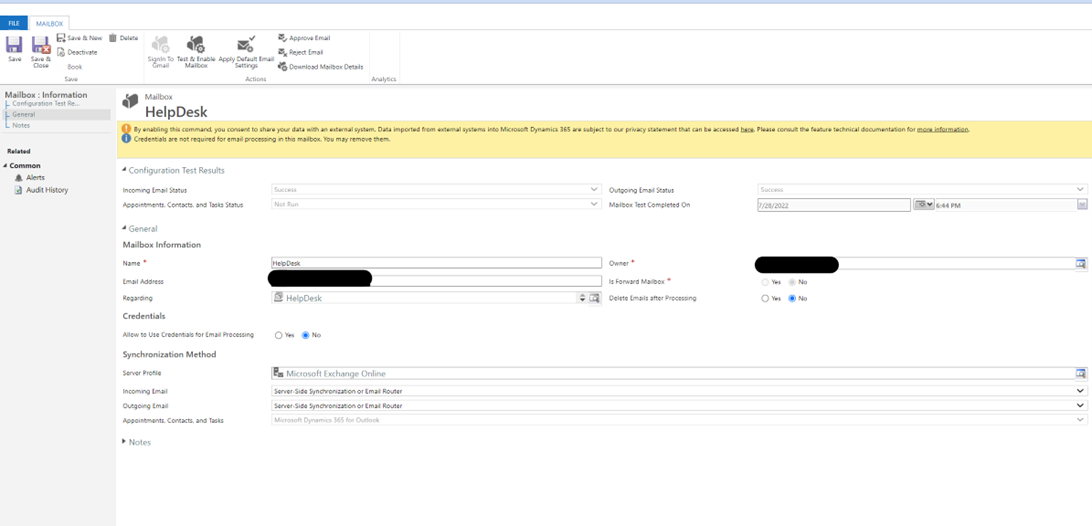
Your first step is to create a Queue in Dynamics 365 with the desired email address you wish to track. The Queue will automatically create a record in the Mailbox table for you. Once your mailbox has been created, you or a Global Admin to Approve the mailbox.
Next, specify the queue you just created to let the ARC Rule know what kind of records it is going to monitor. Then, create a new Condition Builder record found in the second section on the ARC rule. This is where you can add conditions or filters on when to create the desired records. In the screenshot example below, we selected the Case as the “Record to Create”. After saving, a Power Automate Flow is created, which is where your case will be displayed. You can add additional logic and checks before creating a case. For example, it’s a good idea to see if the sender of the email is an internal user, so you only create cases for external users.

Lastly, when navigating back to the Record Creation and Update Rule record you will notice one last section, labeled “Step three: additional actions to take after matching with a condition”. Here is where you can decide if you would like to automatically send out an email to the original sender notifying them that a case has been created and a team is working on a solution.
Here is an example of ARC rules being created to easily manage IT requests.
If you are looking for support creating ARC rules, or have other Dynamics 365 questions, visit this webpage.