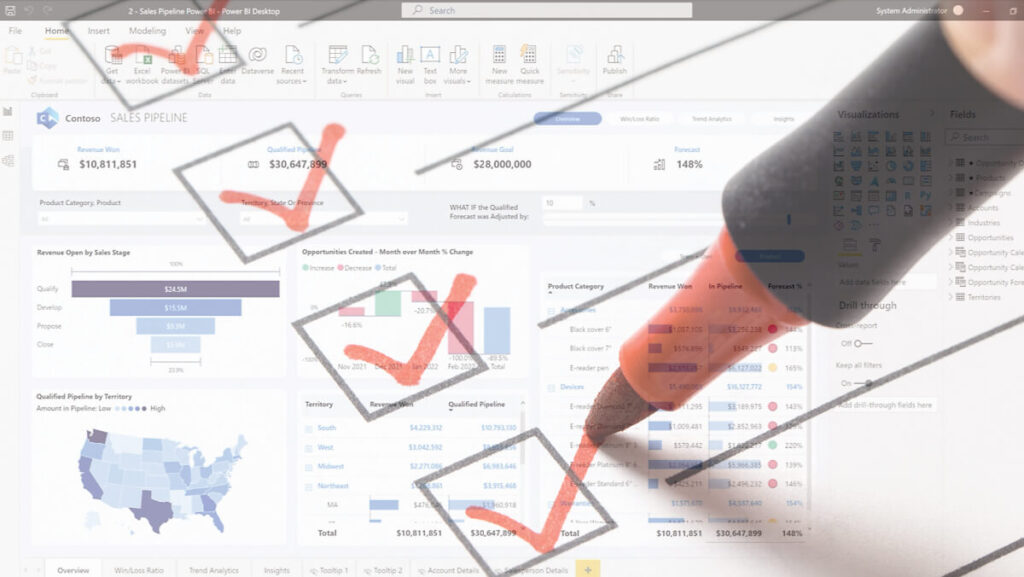
Power BI Desktop is an essential tool for data analysts and professionals who need to create interactive reports and visualizations. Microsoft frequently releases updates for Power BI Desktop, which include new features, enhancements, and bug fixes. To take advantage of these improvements, it’s important to keep your Power BI Desktop up to date. Here is a walk-through of how to update your Power BI Desktop, while ensuring you have access to the latest features and improvements.
1. Check Your Current Version
Before updating, check the version of the Power BI Desktop that you’re currently using.
How to check current version:
- Open Power BI Desktop
- Go to the ‘Help’ tab on the top menu
- Click on ‘About’ to see your current version number and release date
As of 5/5/2026 the latest version is: 2.153.1206.0
Remember that Power BI is updated monthly.
2. Enable Automatic Updates
Power BI Desktop allows you to enable automatic updates, ensuring you always have the latest version. To enable this feature, follow these steps:
- Open Power BI Desktop and navigate to the ‘File’ menu.
- Click on ‘Options and settings’ and then select ‘Options.’
- In the ‘Options’ window, go to the ‘Updates’ section.
- Check the box for ‘Automatically check for updates,’ and select the update frequency (e.g., daily, weekly, or monthly).
- Click ‘OK’ to save your settings.
With automatic updates enabled, Power BI Desktop will notify you when a new version is available and guide you through the update process. While in the options menu, be sure to see what preview features can be enabled. Note: the preview features can be buggy so be prepared for that if you use them.
3. Manually Update Power BI Desktop
If you prefer to update Power BI Desktop manually or if you’ve missed an automatic update, you can follow these steps:
- Visit the official Power BI website: Head to the Microsoft Power BI website and click on ‘Download.’
- Download the latest version: Click on ‘Power BI Desktop’ to download the latest version of the software. You’ll be prompted to save the installation file to your computer.
- Close Power BI Desktop: Before installing the update, make sure to close any running instances of Power BI Desktop.
- Install the update: Run the downloaded installation file and follow the on-screen instructions to update your Power BI Desktop. The installer will automatically replace your existing version with the latest one.
- Verify the update: After the installation is complete, open Power BI Desktop and check the version number under the ‘Help’ tab to ensure it has been updated successfully.

4. Consider Using Power BI Desktop from the Microsoft Store
An alternative way to keep Power BI Desktop up to date is by downloading it from the Microsoft Store. With this method, updates are automatically installed without any manual intervention. To switch to the Microsoft Store version, follow these steps:
- Uninstall your current Power BI Desktop: Go to ‘Control Panel’ > ‘Programs and Features,’ locate Power BI Desktop, and uninstall it.
- Install Power BI Desktop from the Microsoft Store: Visit the Microsoft Store and search for Power BI Desktop click on ‘Get’ to download and install Power BI Desktop.
- Enjoy automatic updates: With the Microsoft Store version, Power BI Desktop updates will be installed automatically, ensuring you always have access to the latest features.
Need Power BI Help?
If you have any questions or just want to chat about the capabilities of Power BI or the Power Platform, reach out to us at JourneyTeam. We can help you take the leap into data modernization and provide your business with quick and substantial value.
JourneyTeam is honored to be recognized as a 2024 Microsoft Partner of the Year Finalist for Low Code— it’s a testament to our expertise and successful applications of Power Platform technologies. Let us help you connect your processes, automate tasks and drive innovation across your organization.
Contact Us Today!
We listen, we understand, and we provide the solutions that will drive your business forward.