
Work doesn’t look like it used to and probably won’t look the same a year from now. Teams are spread across cities, time zones, or even countries. But customers still want fast, personal service. Add to the mix that security threats are moving faster than ever.
To address those issues, as well as other internal struggles for efficiency, companies are turning to Microsoft’s modern work solutions. Here’s why.
Why Businesses Are Moving to Microsoft Modern Work
So why make the switch? It’s the ongoing universal challenges: too many tools, too much manual work, and not enough time.
Over the years, we’ve all worked at companies that added tools for chat, file sharing, project tracking, email, security— you name it. But for IT departments, every new app adds complexity; more licenses to manage, more support tickets, and more bouncing between systems.
Microsoft wants to fix that with Microsoft 365. The platform wraps productivity apps, file storage, chat, meetings, security, and identity into a single subscription. Fewer tools mean fewer logins, a smoother experience, easily shared data, and less hassle for IT. And employees don’t have to learn different platforms or redo work in multiple places.
Those are really appealing drivers for adoption.
Copilot Raises the Bar for Modern Work
So Microsoft 365 has the tools and seamless integration for everyone to be more efficient. But Copilot adds a whole new paradigm to the environment—and it’s one that can’t be ignored. And now, with Microsoft Copilot woven throughout Microsoft 365, you can get a lot more done just by asking Copilot a question or prompting it for information.
Many businesses are reporting measurable efficiency gains. Less time is spent on tasks like writing, data analysis, and email triage. Meetings are shorter. Reporting is faster. Cross-team communication improves. And with security and compliance baked in, you don’t have to sacrifice control for convenience.
Custom Workflows
If you need a tailored, custom Copilot experience, you can build custom workflow agents that use your data and business rules.
Here’s what that might look like:
- A sales Copilot agent reads CRM notes, fills out forms, and drafts proposals automatically.
- An HR agent handles employee questions, routes forms for approval, and responds—all without human intervention.
- A reporting agent pulls data from different systems, summarizes it, and builds a dashboard in seconds.
Collaboration Tools in Microsoft Teams: More than Meetings
Collaboration tools in Microsoft Teams go far beyond chat and video calls. Teams is now a full-fledged collaboration hub that brings people, processes, and content together in one place.
Here’s what’s inside:
- Chat + Channels: Structured discussions organized by topic or team, with file attachments, threaded replies, and searchability.
- Video Meetings + Webinars: HD video conferencing with screen sharing, recording, transcription, and live captions—all integrated into your calendar.
- Apps + Integrations: Hundreds of built-in and third-party tools, from Planner and Approvals to Salesforce and Adobe Sign.
- Real-time Coauthoring: Edit Word, Excel, and PowerPoint files with your team directly inside Teams—no need to email attachments.
- AI Assistance: Smart recaps, action item extraction, and meeting summaries help teams stay aligned, even if someone misses a call.
What makes Teams a standout may be its extensibility. You can embed forms, dashboards, and even line-of-business apps to fit your workflow. Whether you’re coordinating a marketing campaign or running a help desk, Microsoft is hoping it will become your primary workspace.
Microsoft 365 is Bigger Than Just Teams
While Teams is getting most of the spotlight, some would say the real magic comes from how the Microsoft 365 collaboration tools work together.
- In Word, users can generate polished drafts, rewrite content for different audiences, or summarize long documents in seconds.
- In Excel, they can ask natural-language questions about their data and get visual summaries—without touching a formula.
- PowerPoint turns bullet points into branded presentations automatically.
- Outlook helps prioritize emails and schedule meetings with fewer clicks.
These tools share more than just a license, they share a common language. A paragraph drafted in Word can be dropped into PowerPoint. An Excel chart can appear in a Teams conversation. An email thread in Outlook can be used to generate a task in Planner. With Microsoft Copilot embedded throughout, the results can be really eye opening.
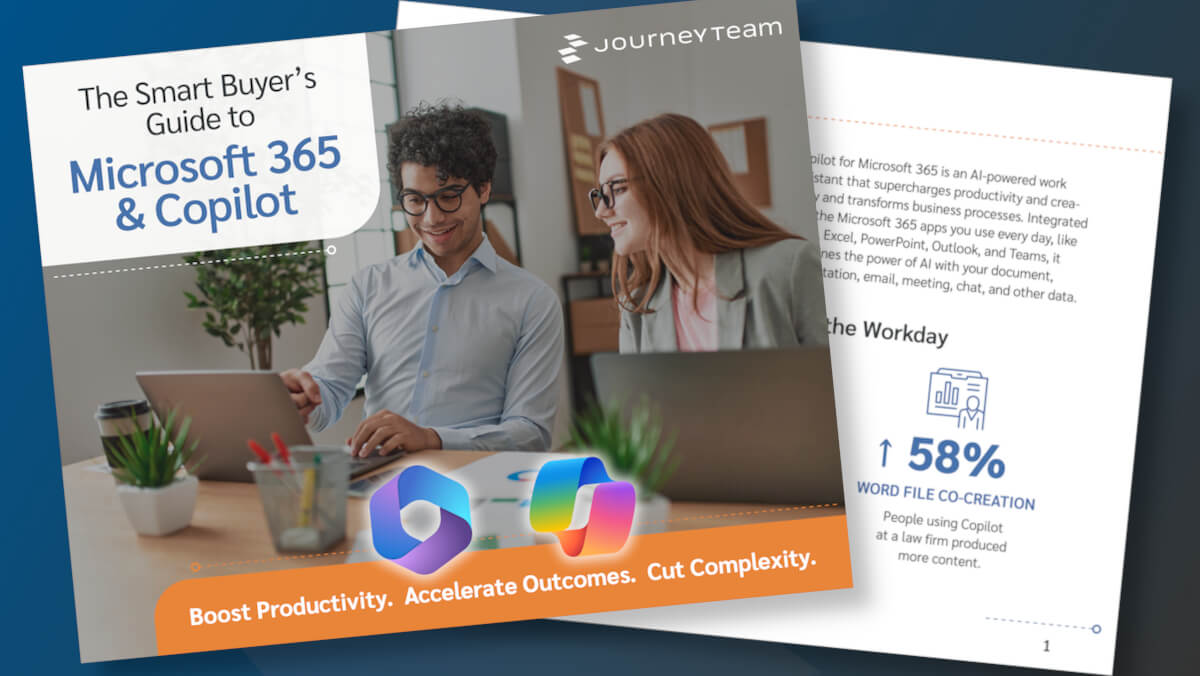
For insights into how Microsoft 365 and Copilot can drive success for your teams, check out our new eBook: The Smart Buyer’s Guide to Microsoft 365 & Copilot. You’ll get some great insight and real-world examples of how JourneyTeam customers have embraced modern work and saved substantial time to increase ROI.
Get The Full Picture With Our New eBook: The Smart Buyer’s Guide to Microsoft 365 & Copilot
Securing the Modern Workplace
Security is a cornerstone of Microsoft modern work. It’s built on a Zero Trust approach, that dictates that every access request is verified—every time.
Here’s how it works:
- Identity-first Security: Microsoft Entra ID (formerly Azure AD) enforces multi-factor authentication, conditional access, and single sign-on across all apps and services.
- Device Management: With Microsoft Intune, organizations can manage devices across platforms, apply compliance policies, and remotely wipe data when needed.
- Endpoint Management and Threat Protection: Microsoft Defender for Endpoints monitors for phishing, ransomware, and suspicious behavior using real-time AI analysis.
- Data protection: Sensitivity labels, encryption, and policies safeguard sensitive information, even when shared externally.
The tools are designed to support hybrid work security. So, even if you use your own devices to collaborate with outside partners and access corporate resources, you can still maintain control and visibility.
Microsoft Copilot adheres to these controls. It honors existing permissions, keeps data within the tenant, and never uses customer data to train shared AI models.
FAQs: Getting Started with Microsoft Modern Work
If you’re wondering whether you’re ready for modern work, here are a few questions to ask:
- Are you just using Microsoft 365 for email and storage, or are your teams using the full suite?
- Are people switching between tools just to get basic work done?
- Is security the same across devices—or are you relying on manual policies?
- Are teams repeating work because tools aren’t connected?
- Do you have a plan for how you’ll use and secure AI?
The answers can help surface gaps or issues that require discussion. And filling those gaps may not require a complete overhaul. It might just need a strategic roadmap, the right tools, and support from a trusted partner like JourneyTeam.
Modern Work: Next Steps
Modern work is about building a workplace where people, processes, and technology work in sync. Where collaboration is seamless, security is invisible, and innovation is just part of the workflow.
Whether you’re just getting started, or deep into your Microsoft 365 journey, there’s always room to improve. That might mean replacing redundant tools, enabling Copilot, launching a Teams-based workflow, or building your first AI agent.
But you don’t have to do it alone. JourneyTeam helps companies turn potential into practice. From licensing optimization and security architecture to hands-on training and AI rollout, we make it work for you.
Reach Out!
We’d love to discuss how you can best adopt and make best use of Microsoft365 and Copilot to drive real change.