A sophisticated phishing campaign is actively exploiting a vulnerability in Microsoft Teams calendar invites, bypassing traditional email security and impacting organizations across industries. While this type of calendar phishing is not “new”, we are seeing increased reports over the last several days from our customers. Microsoft Defender will quarantine suspicious invites, however we are strongly encouraging Admins and end-users to be aware and exercise increased caution.
How The Attack Works
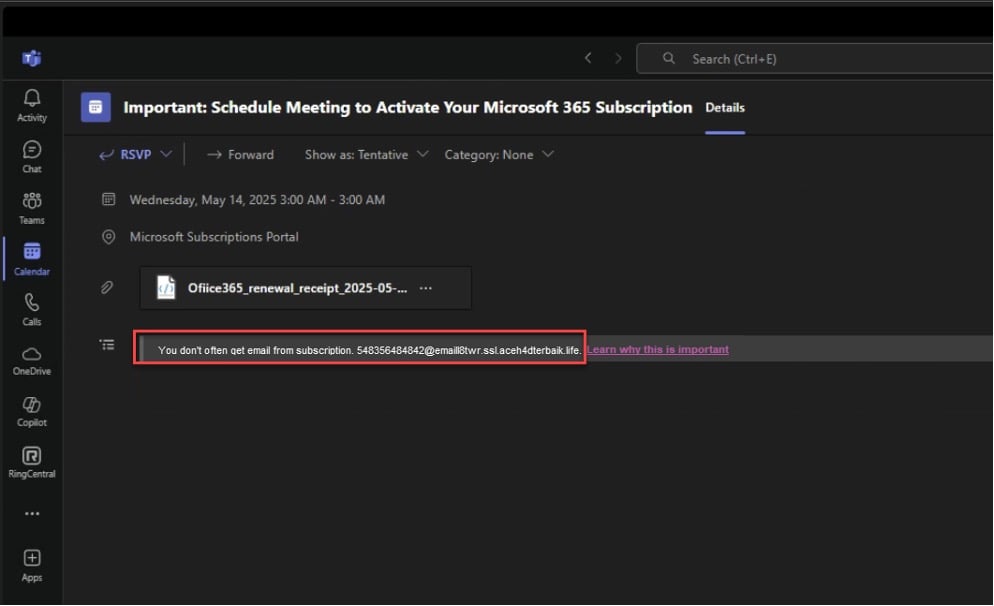
- Attackers weaponize Microsoft Teams calendar invites to deliver malicious content directly onto users’ calendars—even if the original email invite is blocked or quarantined by Microsoft Defender. Because Teams processes these invites through backend calendar services, we are seeing individuals with malicious intent able to bypass traditional email filtering altogether.
- These calendar events can contain dangerous links or attachments (such as .htm or .js files) and often appear to originate from Microsoft or use convincing sender names to increase credibility.
- Once the invite appears on a user’s calendar, engaging with it—by clicking links or opening attachments—can result in credential theft, malware installation, session hijacking, or even command-and-control (C2C) access to the user’s device.
- Invites frequently come from unfamiliar or suspicious email addresses, making vigilance crucial.
Why This Is Important
Traditional security tools focus on email filtering, but this exploit leverages the way Teams processes calendar invites, allowing malicious events to bypass email safeguards and appear directly on users’ calendars. With Teams increasingly relied upon for business communications, attackers are exploiting users’ trust in the platform and the assumption that internal tools are inherently safe.
What You Need to Watch For
- Unsolicited Teams calendar invites that appear automatically, even if the original email was blocked or quarantined.
- Invites containing suspicious links or file attachments, especially .htm or .js files.
- Events that seem to come from Microsoft or use names that closely mimic legitimate senders.
- Requests for sensitive information or prompts to log in from within the invite.
- Calendar events from unknown or external email addresses.
Immediate Steps to Protect Your Organization
- Educate Users: Train employees to recognize suspicious calendar invites and understand the risks of interacting with unexpected events.
- Do Not Interact: Instruct users never to click links or download attachments from unsolicited calendar events.
- Report and Delete: Users should immediately delete suspicious invites and report them to IT or security teams.
- Verify Senders: Always verify the identity of the sender, especially for invites claiming to be from Microsoft or other authoritative sources.
- Disable Auto-Event Creation: Where possible, adjust Teams settings to prevent automatic addition of calendar events from external sources. Use Microsoft Teams Meeting Policies and PowerShell commands to restrict auto-join behavior and external invites. Microsoft recommends disabling ‘AllowAnonymousUsersToJoinMeeting’ where possible.
- Enable Security Features: Ensure multi-factor authentication (MFA) is enabled, keep Teams and Office apps updated, and implement conditional access policies.
- Leverage New Protections: Microsoft is rolling out brand impersonation protection and phishing alerts for Teams, which will help flag suspicious activity from external domains.
Best Practices for Ongoing Security
| Security Measure | Description |
| Multi-Factor Authentication (MFA) | Adds a critical second layer of defense for all Teams and Microsoft 365 accounts. |
| User Security Awareness Training | Regularly educate users on phishing tactics and how to spot suspicious activity. |
| Conditional Access & Guest Controls | Limit access based on user, location, and device; restrict guest access as needed. |
| Monitoring and Auditing | Continuously monitor Teams activity for unusual behavior and review audit logs. |
| Update and Patch Management | Keep all Microsoft apps and operating systems up to date to close known vulnerabilities. |
Stay Vigilant
Phishing attacks are evolving rapidly, and attackers are quick to exploit new channels like Teams calendar invites to bypass even advanced security measures. This campaign is a stark reminder that security awareness and layered defenses are essential.
If you’d like to learn more about how JourneyTeam is helping customers secure their Microsoft environments against these emerging threats, visit our Proactive Security Solutions page.